


GA4 gives you a lot of data. What it doesn’t give you is context.
You can see that sessions dropped 14% last week. You can see that your bounce rate ticked up. What you can’t see — at least not without digging through multiple reports, comparing date ranges, and manually piecing things together — is whether any of it actually matters for your site.
ExactMetrics 9.2 closes that gap. The headline update is AI Chat, our new built-in assistant that connects directly to your GA4 data and turns your questions into specific, plain-English answers — with context, period-over-period comparisons, and a concrete next step included every time.
ExactMetrics 9.2 at a Glance
Here’s what’s new in the latest ExactMetrics release:
- AI Chat — A built-in assistant that answers plain-English questions about your GA4 data, available to every ExactMetrics user, including Lite
- Redesigned Notification Center — Three tabs (All, Archived, Saved) so your account alerts stay organized and easy to act on
AI Chat: Your GA4 Data, Finally in Plain English
AI Chat lives inside your ExactMetrics Reports screen. You don’t need to leave WordPress, open a separate tool, or know anything about GA4 to use it — just open the panel and ask.
It reads your actual data, explains what it means in plain language, and tells you what to do about it.

Click the chat icon in the bottom right corner of your ExactMetrics dashboard to open AI Chat from any Reports screen.
Open It, Ask Anything — No Onboarding Required
The first thing you see when AI Chat opens is a set of starter questions based on what most site owners want to know — things like “What’s my bounce rate?” or “How’s my traffic doing this month?”

Select one to run it immediately, or type anything you want to know in the input field at the bottom.
Context, Comparisons, and a Next Step — Every Time
What makes AI Chat different from just reading a report is what comes with each answer.
Ask about your top traffic sources, and you don’t just get a list. You get an explanation of what the breakdown means, how it compares to the previous period, and a specific action tied to what the data is actually showing.

At the bottom of each response, the Quick Key Insights section gives you one-click buttons that jump directly to the relevant report in your dashboard — so acting on the answer takes seconds, not a separate search.
Ask about your bounce rate and AI Chat tells you what the number actually means for your site, flags anything that looks off, and gives you a clear direction on what to look into next.

Works Across Every Part of Your Analytics
AI Chat pulls from all the data connected to your account — traffic, engagement, eCommerce, and more.
Ask about your SEO, and you’ll get a clear picture of how your site is performing in search: whether organic traffic is coming in, what might be preventing it, and a prioritized list of steps to start building visibility.

If your plan includes the eCommerce addon, AI Chat goes further on purchases, revenue, and cart data. The questions it can answer — and the depth of those answers — grow with the data available in your account.
Hit the Pin button in the panel header to save any response you want to reference again later.
Your History Is Always There When You Need It
Use the menu icon in the top left of the AI Chat panel to start a new conversation, access your pinned responses, or open your full conversation history.

Pinned responses are saved in their own view, so your most useful answers are always a click away. The history log keeps a complete record of every question and answer, which is useful when you want to track how a metric has changed from one week to the next.
AI Chat is available to every ExactMetrics user, including Lite. There’s nothing to set up — just open it and start asking.
One note: if you’ve been using AI Insights or Conversations AI: both features are being retired with this release. AI Chat replaces them with a single, faster, more capable experience.
It’s most useful if you’ve ever needed a fast answer before a meeting, wanted to know which content to prioritize, tried to explain a traffic dip to a client, or simply opened your analytics and left without knowing what to do. If any of that sounds familiar, this feature was built with you in mind.
The Notification Center Got an Upgrade Too
The Notification Center in the top right of your dashboard has been redesigned. Look for the envelope icon — if there are unread items, you’ll see a badge on it.
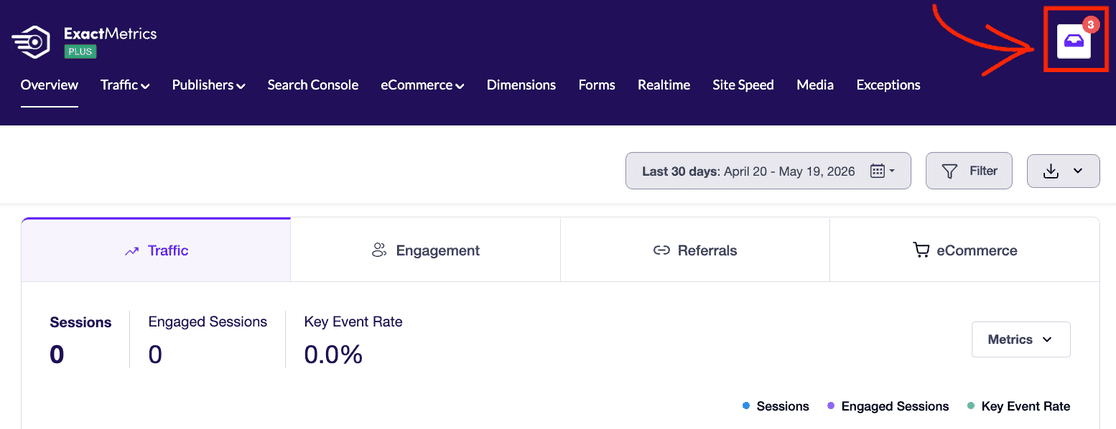
The new layout adds three tabs — All, Archived, and Saved — making it much easier to separate what needs action from what’s worth keeping, without losing track of either.

Tracking alerts, account updates, and recommendations are all there in one place — organized, easy to find, and accessible without leaving your WordPress dashboard.
Turn Your GA4 Data Into Decisions You Can Actually Act On
ExactMetrics connects your WordPress site to Google Analytics 4 and puts an analytics assistant directly in your dashboard. No more staring at numbers without context — just ask, get an answer, and know your next step.
That’s everything in this release. I hope AI Chat makes it easier to get the answers you need — and actually do something with them.
Looking for more? Check out some of our recent posts:
- New Release: Enhanced Search Console Reports and LinkedIn Ads Tracking
- New Release: Block-Based Conversion Tracking and Site Notes API Integration
- Releasing Cart Abandonment Reports: Rescue Your Lost Sales
- Best Search Console Insights Reports to Track
- ExactMetrics 9.0.0: Google Ads Integration and New eCommerce Reports
Not using ExactMetrics yet? Get started today!
Don’t forget to follow us on X and Facebook for the latest Google Analytics tutorials.