


The more data you have access to, the harder it can be to make sense of it quickly. Spotting trends across multiple metrics at once, filtering down to what actually matters for your specific business, and then sharing that data with the right people in the right format — these are the things that make analytics genuinely useful rather than just available.
And it’s not just about the dashboard itself. It’s about what happens after you’ve gathered the insights. Whether you’re reporting to a client, presenting to your team, or handing numbers off to someone who lives in spreadsheets, the way you export and share your data matters just as much as the data itself.
These are the kinds of details that separate a frustrating analytics workflow from a smooth one. And they’re exactly what we focused on with ExactMetrics 9.1.0. This release brings a redesigned Overview dashboard with richer visuals, smarter graph controls, and advanced filtering — plus expanded report export options so your data works the way your team actually works.
Let’s take a look at everything that’s new!
A More Visual, More Flexible Overview Dashboard
The ExactMetrics Overview dashboard has always been one of the fastest ways to check in on your site’s performance without digging through multiple reports.
With version 9.1.0, we’ve taken that same foundation and made it even better — with richer visuals, smarter controls, and a cleaner layout.
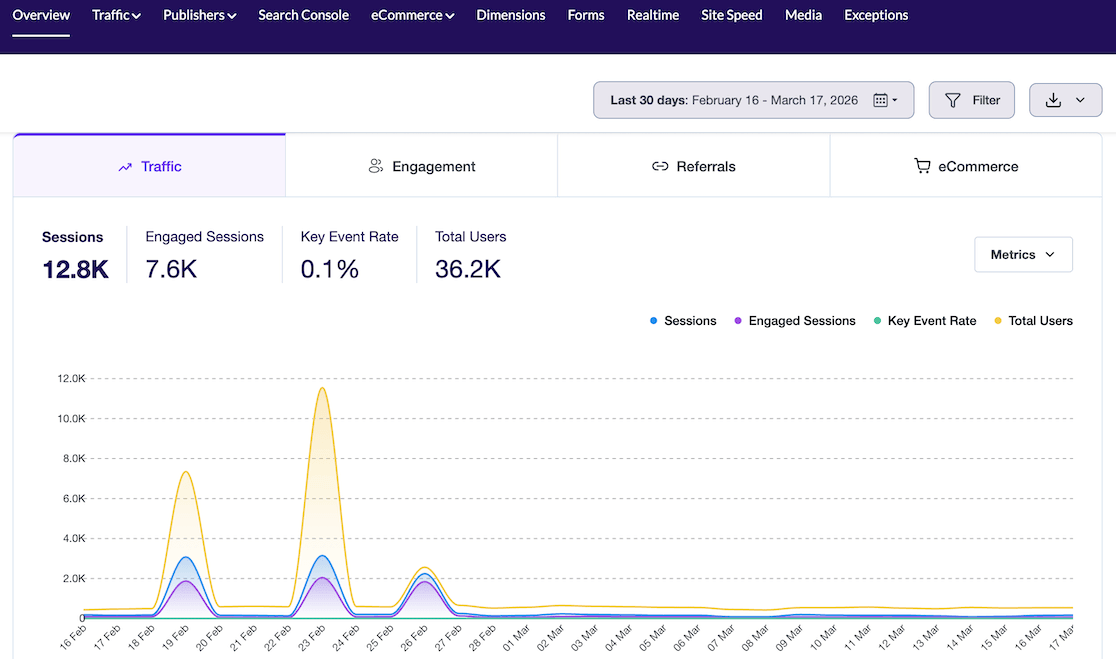
The tabbed navigation you already know is still here. You can switch between Traffic, Engagement, Referrals, and eCommerce with a single click to focus on what matters most to you right now.
The biggest visual change is the graph itself. Instead of viewing one metric at a time, you can now see multiple metrics plotted together on the same chart in distinct, color-coded lines.

It’s easier than ever to spot relationships between your data points at a glance.
And don’t worry — you can still hover over any point on the graph to see the exact numbers for each metric on that specific date.
Introducing the New Metrics Button
You may notice that the gear icon is gone. In its place is a clearly labeled Metrics button in the top-right corner of the chart area.

Click it to open a clean dropdown panel where you can check or uncheck exactly which metrics appear on your graph.
Options include Sessions, Engaged Sessions, Key Event Rate, Total Users, New Users, Returning Users, Bounce Rate, Purchases, Revenue, and more.
When you’re happy with your selection, hit Apply Filters — or Reset Filters to go back to the defaults.
Stats at a Glance, Now Below the Graph
Your at-a-glance summary stats haven’t gone anywhere — they’ve just moved.
You’ll now find your key metrics displayed below the graph, followed by additional data sections like Marketing Campaigns, Pages, Form Submissions, and Demographics depending on your setup.

Each of these sections also comes with its own tabbed navigation, so you can break down data by Campaign, Source, Medium, and more without ever leaving the Overview page.
Each section includes a View Full Report link if you want to dive deeper.
Advanced Filtering
The new Filter button in the top-right of the dashboard opens a slide-out panel with advanced filtering controls.

You can filter your data by type and condition, stack multiple filters together, and filter by device (Desktop, Mobile, or Tablet) with a single click.
You can also save your filters for future use — great for teams or anyone who checks the same segments regularly.
Date Picker and Compare to Previous Still Work Great
The date picker is exactly where you left it. Choose from preset ranges like Last 7 Days, Last 30 Days, Last 90 Days, or set a custom date range. The Compare to Previous toggle is still there too.

When you compare periods, the graph now shows the current period as a solid line and the previous period as a dotted line — both rendered in the new color scheme for easy reading.
Export Your Reports as PDF, CSV, or Excel
Previously, every ExactMetrics report included an “Export PDF.” It’s been upgraded.

The button now reads Export Report, and when you click it, you’ll see three format options:
- PDF — the same polished export you’re used to
- CSV — for importing data into spreadsheets or other tools
- Excel — for anyone working directly in Microsoft Excel
This update applies across all reports in ExactMetrics, so wherever you see the Export Report button, you’ll have all three options available.
Manage Your Exports With the Report Export Queue
Along with the new export formats, there’s now a dedicated place to manage your exports. Navigate to Tools » Report Export to see your export queue, where you can track the status of any export you’ve requested.
Who Is This Perfect For?
These updates are a great fit for:
- Business owners and marketers who want a faster, clearer snapshot of site performance without jumping between reports.
- Data analysts and agencies who regularly export report data and need more flexible file formats for clients or internal workflows.
- eCommerce teams who benefit from seeing traffic, engagement, and revenue trends on the same graph at once.
- Content publishers who want to filter and compare performance by device, source, or campaign right from the Overview screen.
- Anyone who manages reporting for multiple stakeholders and needs to share data in different formats depending on the audience.
Start Using These Features Today
If you’re already an ExactMetrics user, update to version 9.1.0 now to access the new Overview dashboard and expanded export options.
Not using ExactMetrics yet? Get started today and see how simple WordPress analytics can be.
That’s it for this release!
And don’t forget to follow us on X and Facebook for our latest releases.