


Running paid ads without tracking the right data is like driving with your eyes closed. You might be spending hundreds, or even thousands of dollars on clicks that never turn into customers, and you wouldn’t even know it. That’s where paid search analytics comes in.
With the right setup, paid search analytics tells you exactly what’s working, what’s wasting your budget, and what changes will make your ads perform better.
Whether you’re brand new to PPC or trying to sharpen your skills, this guide will walk you through everything you need to know.
In This Article
What is Paid Search Analytics?
Paid search analytics is the process of tracking and analyzing the performance of paid advertising campaigns — especially PPC (pay-per-click) ads on search engines like Google and Bing.
It gives you clear data on whether your ads are earning their keep and how users behave after clicking on them.
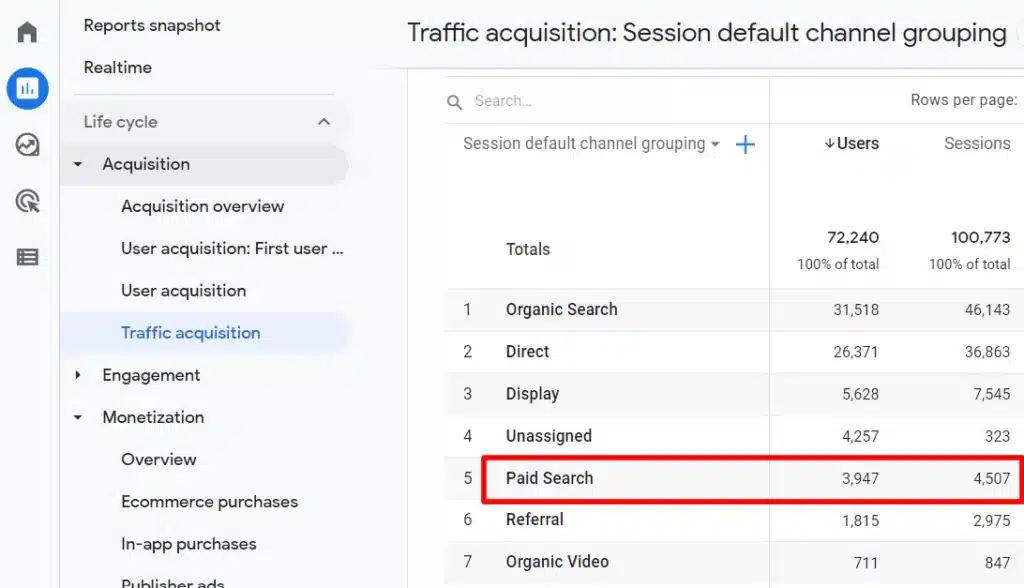
It goes well beyond just checking your click numbers. Paid search analytics digs into the full picture of what happens after someone lands on your site from a paid ad.
Here’s a breakdown of the key data points it covers:
- Click-through rate (CTR): The percentage of people who see your ad and actually click on it
- Conversion rate: How many ad clicks result in a purchase, sign-up, or form submission
- Cost per click (CPC): What you pay each time someone clicks your ad
- Cost per acquisition (CPA): The total cost to acquire one customer through paid search
- Engagement rate: Whether ad visitors are exploring your site or bouncing right away
- New vs. returning users: The mix of first-time and repeat visitors your ads bring in
- Quality Score: Google’s rating of how relevant your keywords and ads are to your audience
- Return on ad spend (ROAS): The revenue you generate for every dollar invested in ads
When you look at all this data together, you get a real answer to the big questions: Are my ads worth the cost? Am I reaching the right people? Which campaigns are driving real results?
Let me walk you through the best tools to find those answers.
Top Paid Search Analytics Tools
Google Ads and Microsoft Advertising both have built-in dashboards packed with useful data. For this guide, though, I’m focusing on the analytics tools that show you what happens after someone clicks your ad and lands on your website. These are the tools I personally rely on.
1. Google Analytics 4 (GA4)
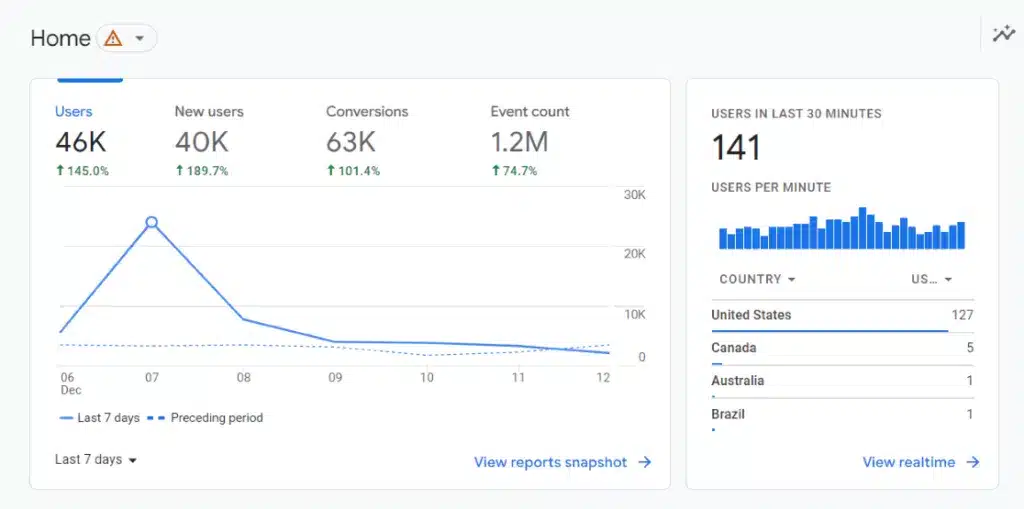
Google Analytics 4 is the gold standard for website measurement — and it’s completely free. It connects directly with Google Ads and gives you detailed data about how your paid traffic behaves once they arrive on your site.
Here are the GA4 reports I use most often for paid search:
Traffic Acquisition
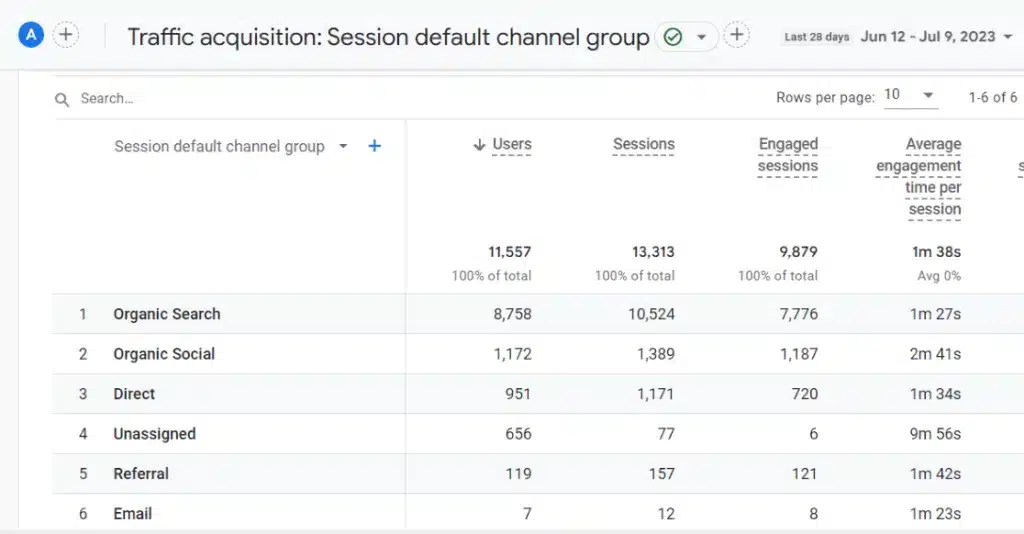
The Traffic Acquisition report breaks down how visitors from each channel — including paid search — behaved on your site.
You can compare your paid traffic to organic, direct, and social visitors side by side.
You’ll see session counts, engagement time, and conversion data all in one place.
For more detail, change the dropdown to Session source/medium.
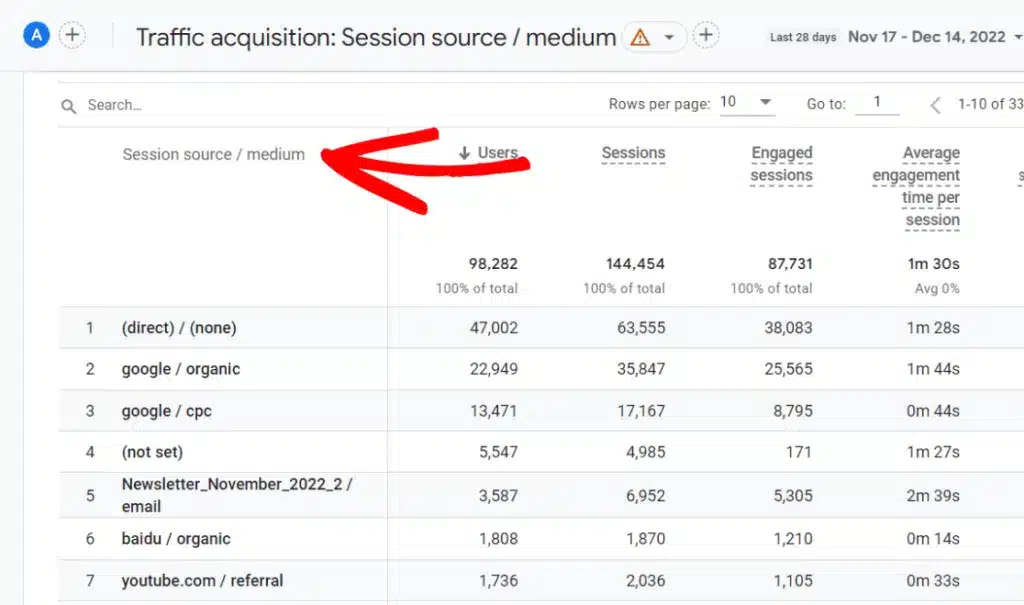
This lets you see performance broken down by each individual source and traffic type.
Campaigns
This is one of the most import reports to check when you’re running paid ads.
To find it, go to your Traffic Acquisition report and switch the dropdown to Session campaign.
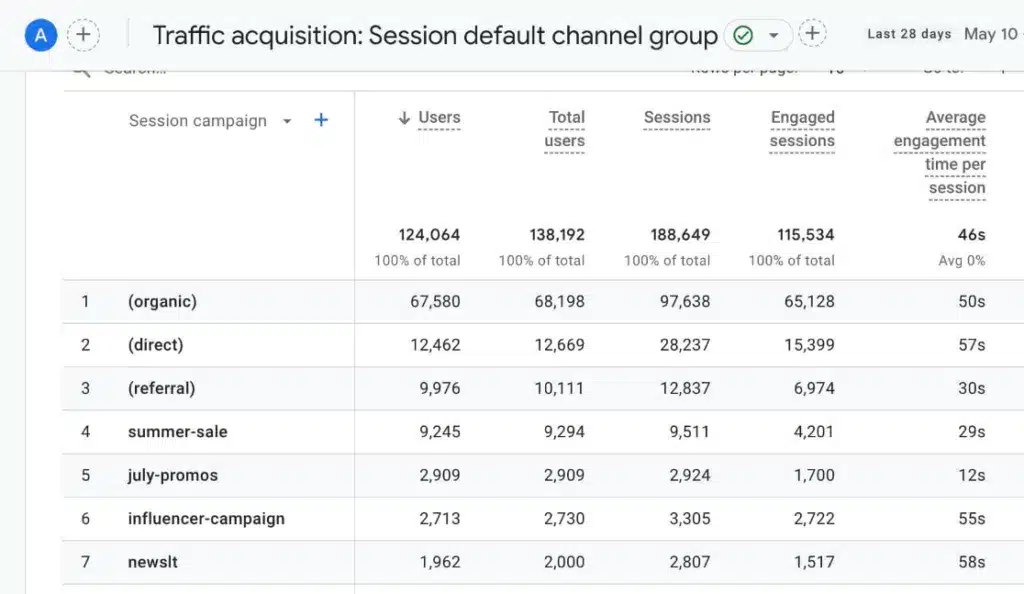
You’ll see a breakdown of every campaign and how it performed.
Want even more detail? Click the blue plus sign next to the dropdown and add Session source/medium as a secondary dimension.
Landing Page
Your landing pages are doing the heavy lifting — so it’s worth checking how they’re performing for paid traffic specifically.
Under the Engagement heading, open the Landing page report, then add Session campaign or Session source/medium and filter down to the source you want to analyze.
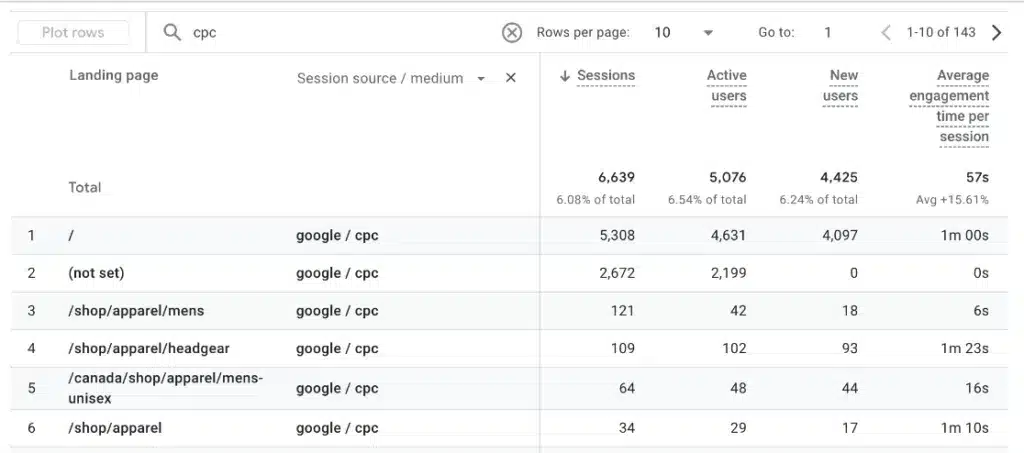
This shows you which pages are actually driving conversions and which ones need work.
Google Ads Report
Head to the Advertising tab in GA4 and click on the Google Ads report.
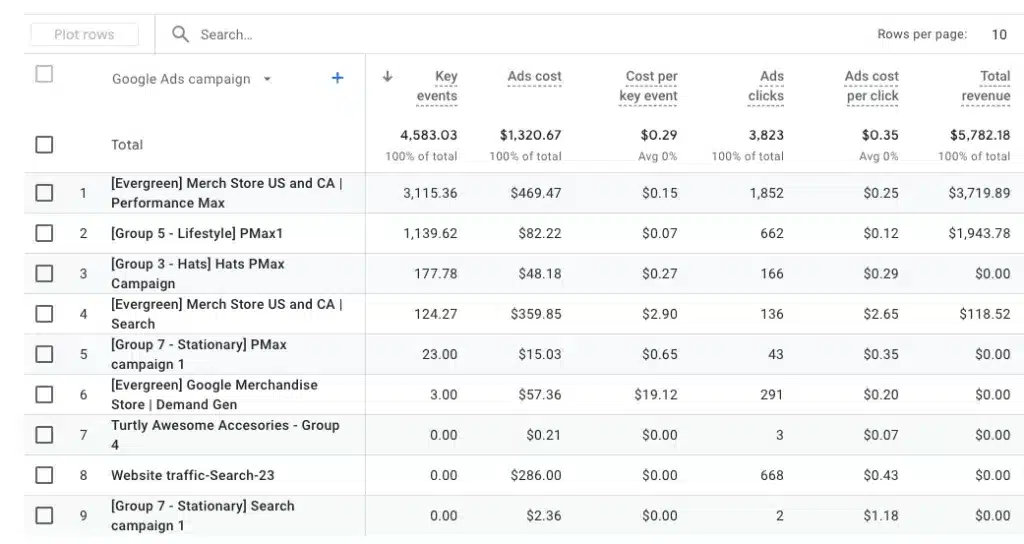
It pulls in your key event data alongside the same campaign metrics you’d find in your Google Ads account, making it easy to see conversion performance without switching platforms.
2. ExactMetrics
ExactMetrics is the top Google Analytics plugin for WordPress sites.
If your website runs on WordPress, ExactMetrics is the easiest way to connect to GA4 and bring all your most important analytics data into your WordPress dashboard — no need to leave your site.

One of my favorite things about ExactMetrics is how much it simplifies advanced tracking.
Setting up eCommerce tracking, form conversion tracking, and media tracking takes just a few clicks.
There’s also a dedicated addon for installing your Google Ads or Microsoft Advertising pixel.

ExactMetrics also gives you a clean Campaigns report right inside WordPress, so you can instantly see which campaigns are driving traffic and results:

You’ll also find a Source/Medium report that shows at a glance where your visitors are coming from and how they’re behaving.
And that’s just the start — ExactMetrics delivers an entire dashboard of easy-to-read reports, so you always have a clear view of your site’s performance.
Pro Tip: ExactMetrics saves you time by surfacing your most important paid search data directly inside WordPress. No digging through GA4 menus required.
3. Semrush
Once you understand your own paid search data, the next smart move is to look at what your competitors are doing. That’s where Semrush comes in.
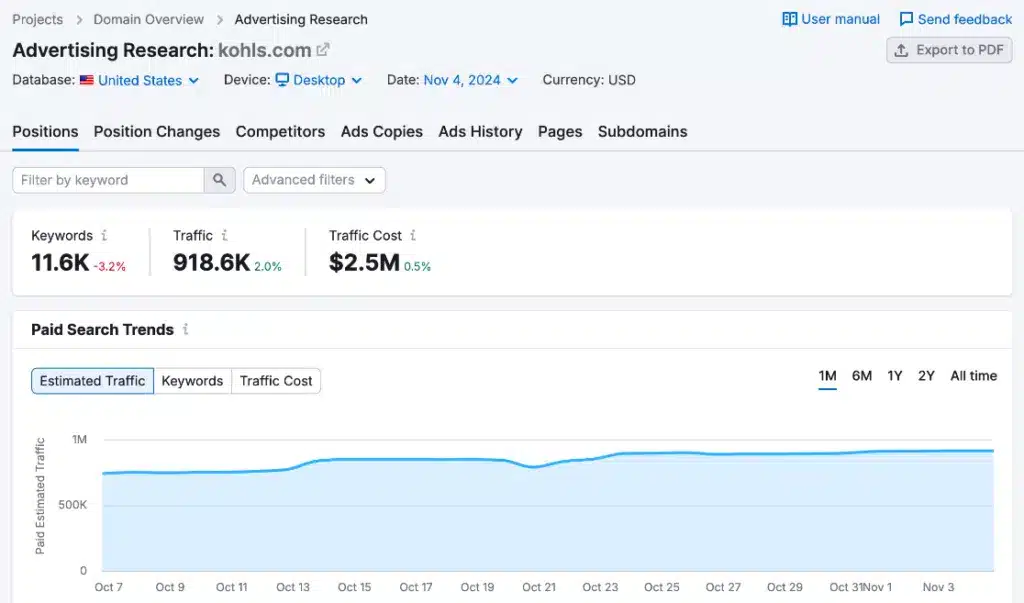
With Semrush’s advertising research tools, you can type in any competitor’s domain and instantly see:
- Which keywords their ads are showing up for
- How much traffic they’re getting from paid search
- Their top-performing ad copy
- Which landing pages they’re actively promoting
- Who their main paid competitors are
I’ve found this kind of competitive intelligence incredibly valuable when planning new campaigns or figuring out why a competitor keeps outranking you in the paid results.
How to Measure Paid Search with Google Analytics 4
Ready to actually dig into your paid search data in GA4?
I’ll show you how to build a custom report that puts all your most important paid search metrics in one place. You only need to set it up once, and you can come back to it anytime.
Step 1: Create a Blank Custom Report
In your GA4 account, click on the Explore tab in the left sidebar.
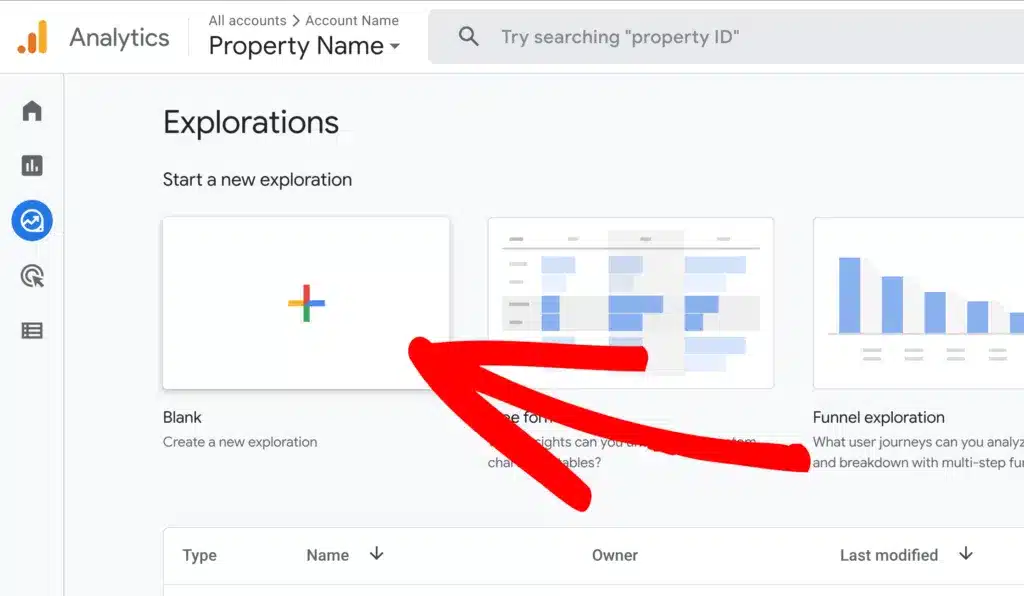
Then select Blank to start a fresh report.
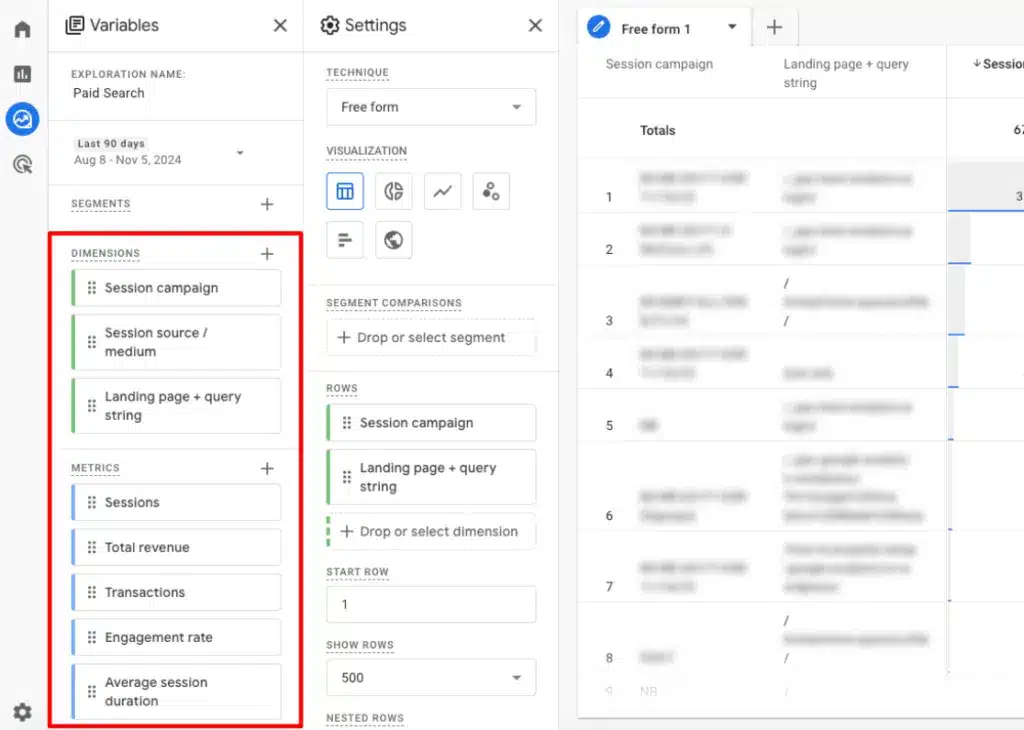
Step 2: Add Dimensions and Metrics
In the Dimensions box, add:
- Session campaign
- Session source/medium
- Landing page + query string
In the Metrics box, add:
- Sessions
- Total revenue
- Transactions
- Engagement rate
- Average session duration
Note: If your site isn’t set up for eCommerce tracking yet, skip total revenue and transactions. Replace them with the Key events metric instead.
Once you’re done, your report should look something like this:
Step 3: Set Your Rows and Values
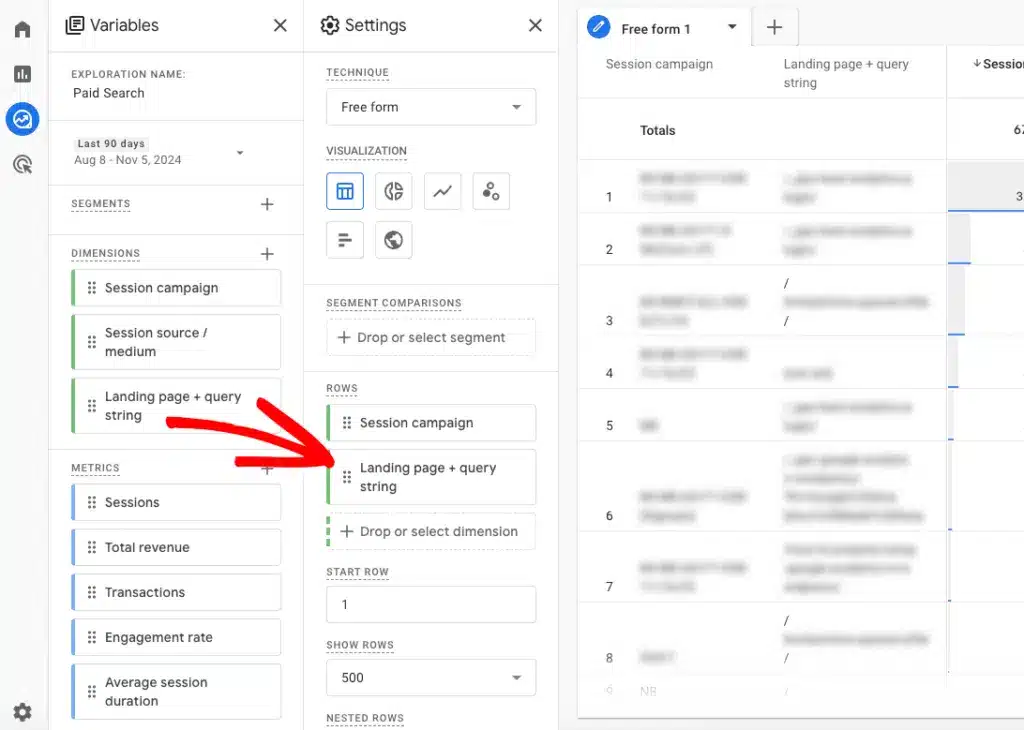
Click and drag Session campaign and Landing page + query string from the Dimensions section into the Rows box.
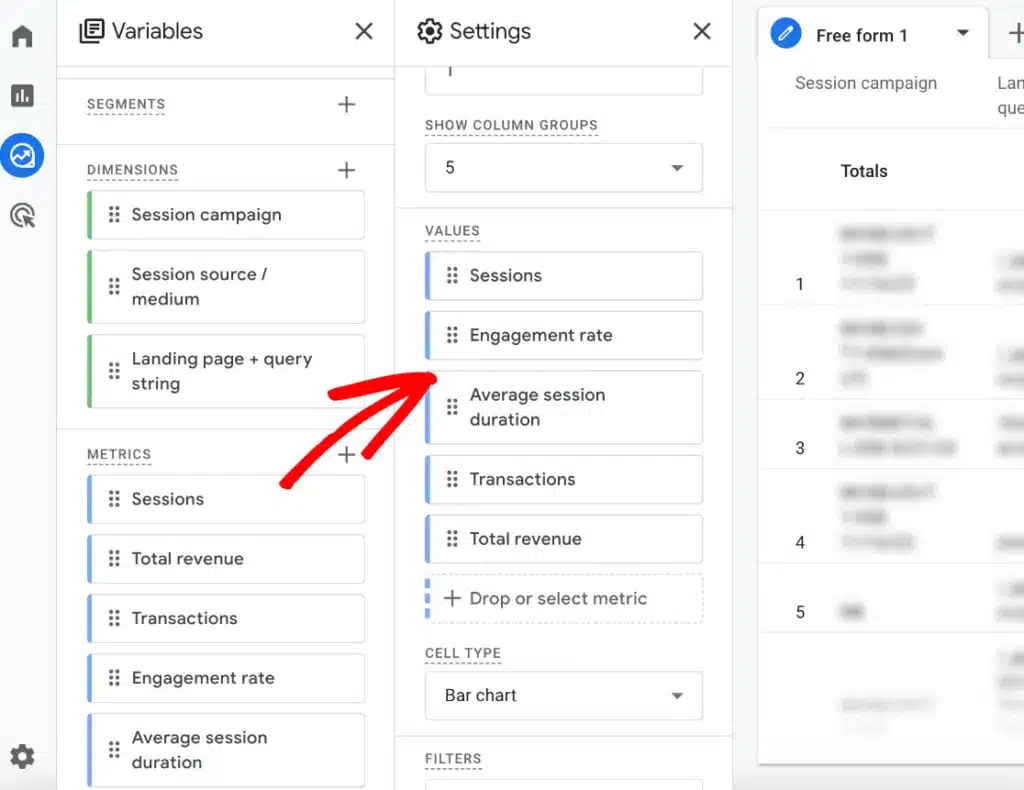
Then drag all five metrics into the Values box (or all six if you added Key events).
Step 4: Add a Session Filter
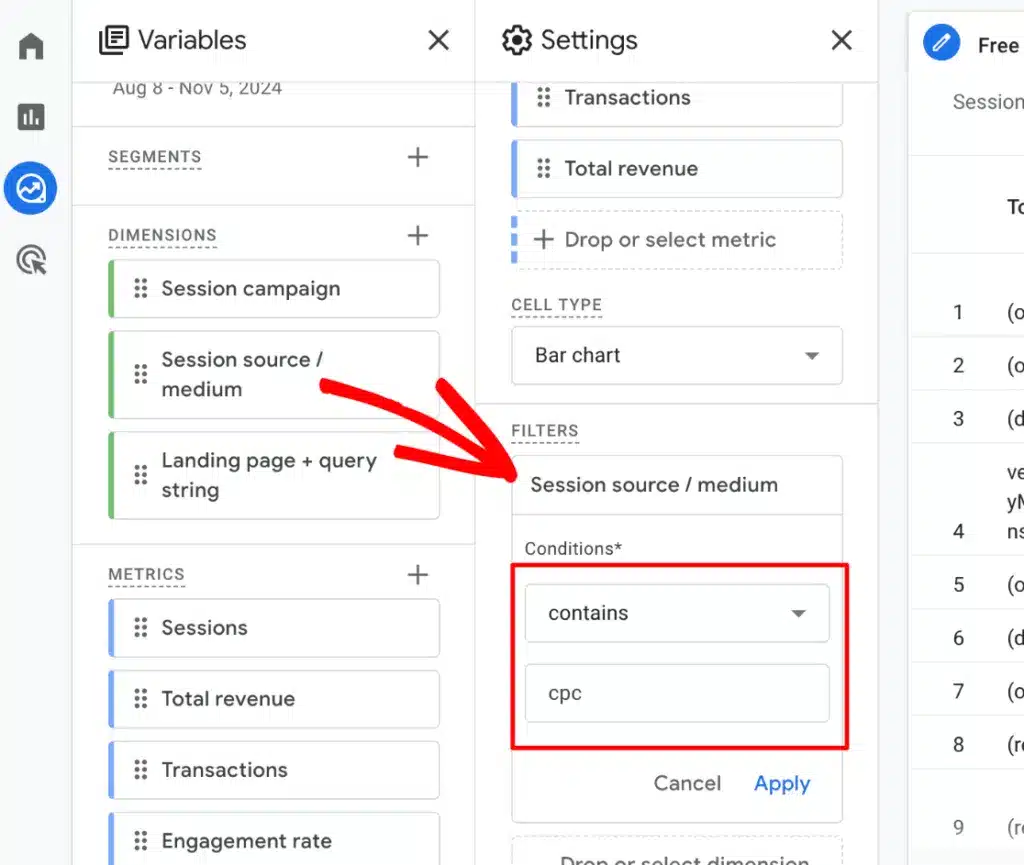
Right now, your report includes all campaign traffic. To focus it on paid search only, drag Session source/medium from Dimensions down to the Filters section.
Set the filter condition to “exactly matches,” then type in your paid source. For Google Ads, that’s google / cpc. For Microsoft/Bing ads, use bing / cpc. Click Apply when you’re done.
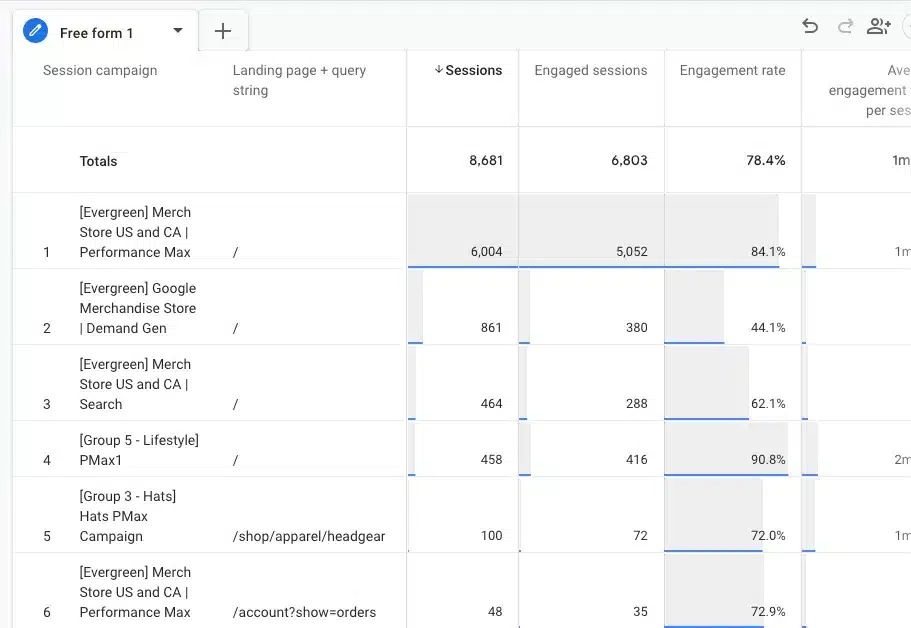
Your report now shows only paid search traffic, broken down by campaign and landing page.
For every row, you’ll see session counts, user engagement, and conversion data — all the key numbers you need to judge your campaign performance.
Step 5: Experiment With Additional Dimensions and Metrics
Once your core report is running, try adding these extras to learn even more about your paid campaigns:
Additional Dimensions:
- Session Google Ads keyword text
- Session Google Ads ad group name
- Session Google Ads query
- Device category
- Region
Additional Metrics:
- Total users
- Session key event rate
- Bounce rate
- Engaged sessions
Play around with different combinations to find the view that works best for your goals.
Frequently Asked Questions About Paid Search Analytics
What is the difference between paid search and PPC or CPC in Google Analytics 4?
“Paid search” refers specifically to ads that appear on search engines, like Google Ads. “PPC” (pay-per-click) and “CPC” (cost-per-click) are broader mediums that can apply to any type of paid ad — including display, social, and search. In GA4, these terms show up differently depending on how your campaigns are tagged and where your ads are placed.
How do you measure paid search performance?
The best approach is to use Google Analytics 4 alongside a WordPress plugin like ExactMetrics. Together, they give you a full picture of your top PPC KPIs — including conversion rate, click-through rate, cost per acquisition, and engagement rate — all in one place.
How do you find Google Ads reports in Google Analytics 4?
Inside GA4, Google Ads data appears in several places. You can find campaign-level data in the Traffic Acquisition report (by switching the dropdown to Session campaign), and dedicated Google Ads reports under the Advertising tab. For a full walkthrough, check out our guide: How to Find Google Ads Reports in Google Analytics (GA4).
What is a good ROAS for paid search campaigns?
A good ROAS (return on ad spend) varies by industry, but a common benchmark is 4:1 — meaning you earn $4 in revenue for every $1 spent on ads. According to WordStream, the average Google Ads conversion rate across industries is around 4.40% on the search network. That said, your target ROAS should be based on your own profit margins and business goals, not industry averages alone.
How often should I review my paid search analytics?
I recommend checking your core paid search metrics at least once a week if you’re actively running campaigns. For bigger budgets or new campaigns, daily monitoring in the first few weeks helps you catch issues early and make quick adjustments before they cost you money.
That’s it! You now have a solid foundation for tracking, measuring, and improving your paid search performance. The data is all there — it’s just about knowing where to look and what questions to ask.
Not using ExactMetrics yet? Get started today.
If you found this guide helpful, you’ll also want to check out:
- Top eCommerce Metrics to Track Now [GA4]
- Guide: Mastering Plot Rows in Google Analytics 4
- Best WordPress CDNs (Beginner-Friendly Guide)