


Are your website forms collecting dust while potential customers slip away unnoticed?
Most website owners have no idea which forms actually work. They add contact forms, newsletter signups, and lead capture forms to their sites, then cross their fingers and hope people fill them out.
The problem? Without tracking, you’re flying blind. You don’t know if that homepage contact form gets 1,000 views with zero submissions, or if your sidebar newsletter signup is your secret conversion machine.
Form tracking changes everything. When you track form submissions in Google Analytics, you’ll discover exactly which forms drive results and which ones waste valuable screen space. You’ll see conversion rates, identify drop-off points, and make data-driven decisions that boost leads and sales.
The challenge? Google Analytics doesn’t track forms automatically. Traditionally, you’d need to write custom code, set up complex events, and configure tracking for every single form on your site. That’s hours of technical work most website owners simply can’t do.
There’s a better way. With the right tools, you can set up complete form tracking in under 10 minutes—no coding required. You’ll get instant insights into form performance, see which forms convert best, and optimize the ones that don’t.
In this guide, we’ll show you exactly how to track form submissions in Google Analytics the easy way. By the end, you’ll have professional-grade form analytics running on your site without writing a single line of code. Let’s get started!
In This Article:
- Why Should You Track Form Submissions in Google Analytics?
- How to Set Up Form Tracking in Google Analytics the Easy Way
- FAQs: Form Tracking in Google Analytics
Why Should You Track Form Submissions in Google Analytics?
Form tracking helps you get valuable insights into your user’s behavior and how they engage with different forms on your website. And with Google Analytics, you can measure not only form submissions, but several other important metrics:
- Form Conversion Rate – You can find out how each of your forms is converting on your website (number of submissions divided by impressions)
- Most Popular Forms – Discover which forms get the most submissions, and try to maximize conversions on those forms first
- Optimize Your Forms – Compare impressions and conversion rates and optimize forms that don’t perform as well
Now, are you ready to learn how to use Google Analytics to track form submissions and conversions?
How to Set Up Form Tracking in Google Analytics the Easy Way
As we said earlier, Google Analytics won’t track your forms automatically. You need to add special code snippets to your webpages to set up tracking, and then set up custom reports to view your results.
As you can imagine, this can be difficult, especially if you’re not comfortable with code or Google Analytics. So, is there an easier way?
With the help of ExactMetrics, you can set up form tracking in no time. It’s the best premium WordPress analytics plugin, and using Google Analytics is very simple.

Using this plugin makes it incredibly easy to connect Google Analytics to your WordPress site without any coding. And, you’ll see all of your important data from Google right inside WordPress, without logging into your Analytics account.
ExactMetrics gives you comprehensive traffic stats like total visitors, new users, traffic sources, and much more.
In addition, you can use it to easily set up advanced tracking for forms, eCommerce conversions, your site’s top search terms, video plays, and other valuable data.
With that, just follow these simple steps and you’ll be tracking your forms in no time…
Step 1: Install ExactMetrics Forms Addon
The first thing you’ll need to do after installing the ExactMetrics plugin on your website is to install the Forms addon. Make sure you get the ExactMetrics Pro plan or higher to access the addon.
So, go to your WordPress dashboard and then click ExactMetrics » Addons in the main menu. Next, look for the Forms tile and click Install. The addon will automatically activate.
1116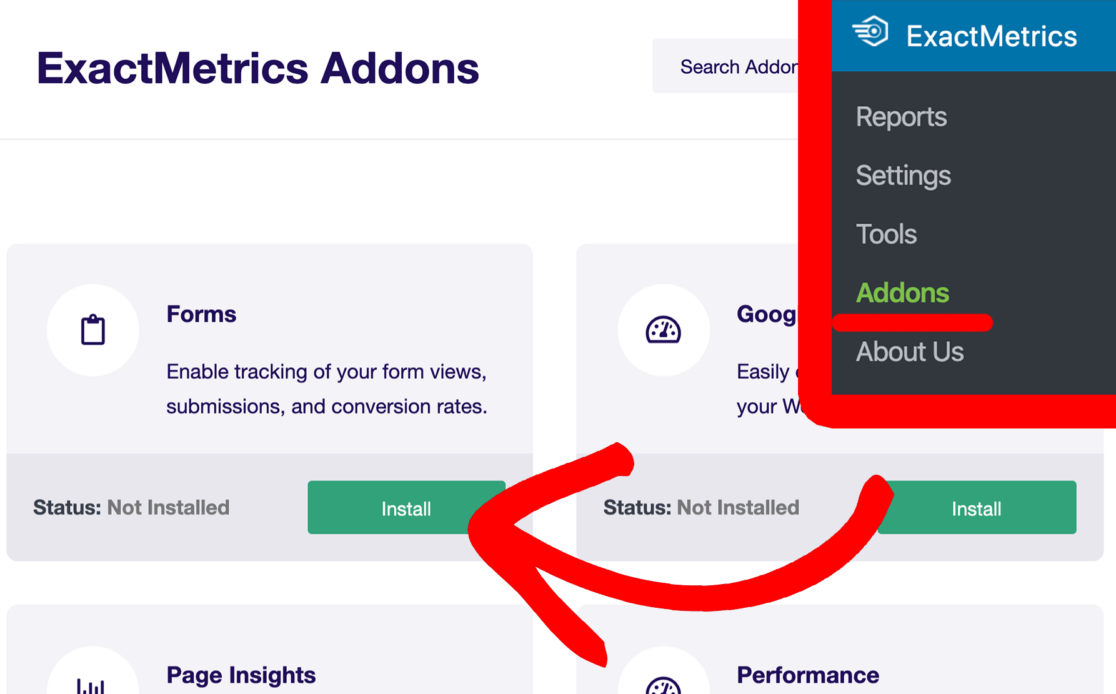
Step 2: View Form Tracking Report in WordPress
After you’ve installed the addon, ExactMetrics will automatically configure your form tracking in Google Analytics. However, it may take 24 to 48 hours for form submissions to start showing up, as it takes time for Google Analytics to collect data.
Once you have relevant data, you’ll find ExactMetrics’ user-friendly Forms report in the WordPress dashboard.
You can find the report by going to ExactMetrics » Reports » Forms.

The report will show all the forms published on your website, along with their performance.
You’ll see three key statistics in the Forms report:
- Form impressions – The number of times a form was viewed by a site user
- Form conversions – The total number of form submissions
- Conversion rate – A percentage of the people who viewed the form who actually completed and submitted it
This data is extremely useful for optimizing your forms. You can make better decisions about which forms to use more, and which to remove or optimize. And, if you’re running a campaign to collect leads, you’ll be able to measure your lead capture campaign’s performance.
Step 3: View Form Conversions in Google Analytics
One of the huge benefits of using ExactMetrics is that it automatically creates form-related custom events. This allows you to view form conversions inside Google Analytics without having to do any additional configuration.
To view the report, go ahead and log in to your Google Analytics account.
click on the Engagement » Events item in the Reports menu.

Now, you’ll see the Events overview report. It shows a graph of events over time and a chart of top events, along with a list of every event that’s tracked on your site.

In the column titled Event name, you’ll see your form_impression and generate_lead events. The generate_lead event is the custom event associated with a user submitting a form.

Now, to see exactly how many impressions each of your forms received, click on the form_impression link. That takes you to a detailed stats page. Scroll down and you’ll see the Form ID box with the names of all of your forms, the Event Count (number of impressions), and the number of Total Users who performed each event.

To see how well all of your forms converted, click on the generate_lead link on the previous screen. Now you can see all of your form conversions listed by Form ID, along with the total Event Count and Total Users.

Step 4: Mark Form Submissions as Conversions (Key Events)
You might want form submissions to count as conversions (now called key events) in Google Analytics 4. The good news is that marking them that way is really simple when you’re using ExactMetrics!
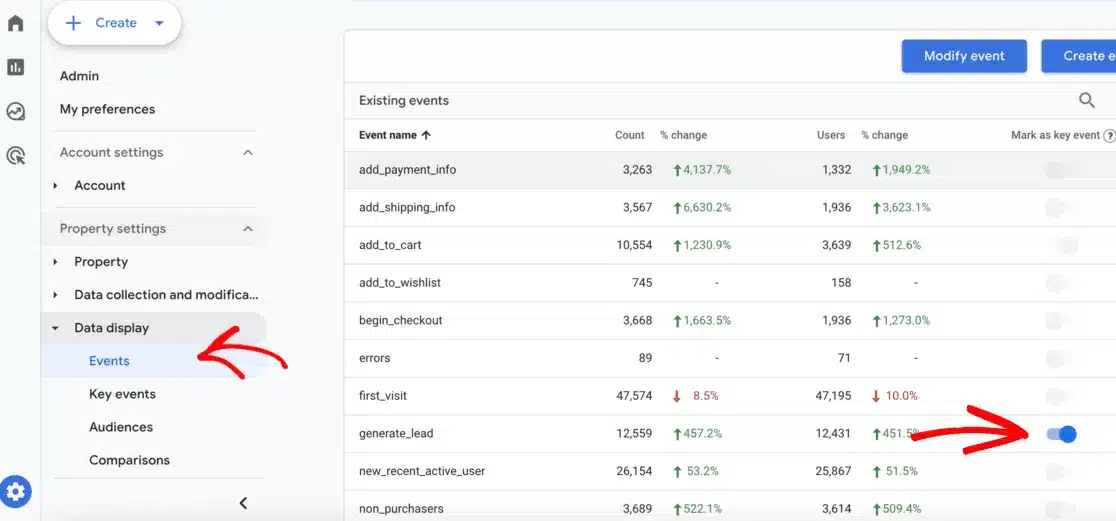
Simply log into Google Analytics and go Configure » Events, then flip the switch on next to generate_lead:
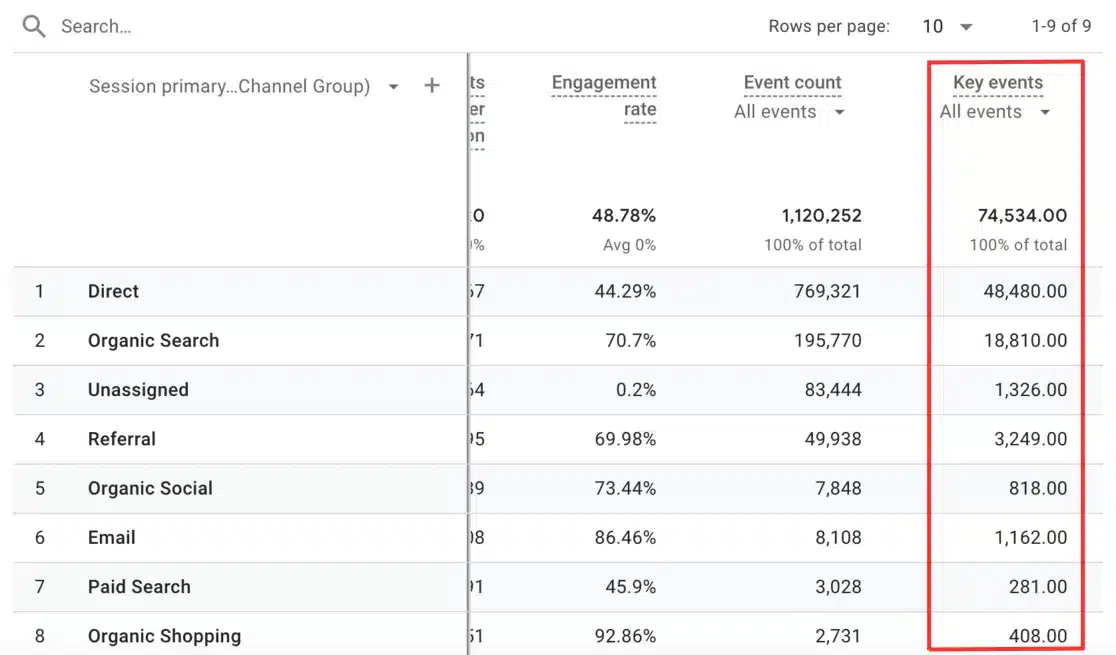
Now your Analytics report will count form submissions as key events, like in this traffic acquisition report:
And that’s it!
You now know how to track form conversions in Google Analytics. Go through the data and see which forms work and which need improvement. Then, optimize them to get maximum engagement and conversions.
We hope you liked our article on how to track form submissions in Google Analytics. You might also be interested in how to track your site’s SEO rankings using Google Analytics.
Don’t forget to follow us on X and Facebook to get the latest Google Analytics tools, tips, and tutorials.
FAQs: Form Tracking in Google Analytics
Here are answers to common questions about tracking form submissions in Google Analytics.
How much does form tracking cost in Google Analytics?
Google Analytics is completely free, so tracking forms doesn’t cost anything. However, Google Analytics doesn’t include built-in form tracking – you’ll need to either write custom code yourself or use a plugin. ExactMetrics offers form tracking starting with their Pro plan, which automates the entire setup process without requiring any coding knowledge. This saves hours of development time and eliminates ongoing maintenance headaches.
What’s the difference between form impressions and form conversions?
Form impressions measure how many times users viewed your form on your website. Form conversions (submissions) measure how many times users actually completed and submitted the form. The conversion rate is calculated by dividing submissions by impressions. For example, if your form received 1,000 impressions and 50 submissions, your conversion rate is 5%. This helps you identify forms that get seen but don’t convert well.
Which forms should I track on my website?
Track all forms that matter to your business goals. Common forms worth tracking include contact forms, newsletter signup forms, quote request forms, lead generation forms, account registration forms, and checkout forms. Even simple forms like search boxes can provide valuable insights. If a form helps you achieve a business objective – whether it’s capturing leads, growing your email list, or processing sales – you should track it.
What’s a good form conversion rate?
Form conversion rates vary widely depending on your industry, form complexity, and placement. Generally, contact forms convert between 1-5%, while newsletter signups may see 2-10% conversion rates. Short forms with fewer fields typically convert better than long forms. Focus less on comparing your rates to industry benchmarks and more on improving your own baseline – even small improvements in conversion rate can significantly impact your business results.
Can I track partial form submissions or abandoned forms?
With standard ExactMetrics form tracking, you’ll track completed submissions. To track partial submissions or form abandonment (when users start filling out a form but don’t complete it), you’ll need more advanced event tracking capabilities. This helps identify which form fields cause users to quit, allowing you to simplify forms and reduce friction. Consider this advanced tracking if you have long forms with multiple fields.
Do I need Google Tag Manager to track forms?
No, when using ExactMetrics, you don’t need Google Tag Manager to track forms. The plugin automatically handles all the technical setup, including creating the necessary events in Google Analytics. If you’re setting up form tracking manually without a plugin, Google Tag Manager is the recommended method as it’s easier than adding code directly to your website.